AI Email Concierge
Intelligent Triage for Multi-Account Email
Summary
AI Email Concierge sorts incoming email across multiple accounts so important messages are easier to find. It combines configurable rules with AI classification to assess priority and move messages into the appropriate folders. Built for email accounts on custom domains, it works in the background while people continue using their existing email app.
Urgent messages trigger phone notifications, while daily summaries provide an overview of what was processed. Notification settings can be adjusted through conversational commands. A dashboard records how each message was handled, making it possible to review classifications and refine the rules.
Overview
- Sorts incoming email across multiple accounts.
- Works with custom-domain email and existing email apps.
- Combines configurable rules with AI classification.
- Sends urgent alerts and daily summaries.
- Adjusts notification settings through conversational commands.
- Records how each message was handled for review.
Role
- Product Designer and Systems Designer
- Research and email workflow design
- Classification logic and automation rules
- Dashboard and monitoring interface design
- Notification and conversational interaction design

00. Table of Contents
Multiple email accounts, years of accumulation, important messages buried.
02 ResearchCommercial services comparison. The Gmail and Outlook assumption.
03 DecisionThe automation prerequisite. Why email triage qualifies.
04 ArchitectureLaravel integration, LLM API, Telegram interface, VPS infrastructure.
Interface design for monitoring and management.
06 Telegram IntegrationNotifications, summaries, and natural language commands.
07 OutcomeCost comparison, operational results, what optimizing for absence means.
08 Technical ImplementationServer setup, Laravel integration, environment configuration, scheduling.
01. Context
I have used email accounts on custom domains for years, and over time the number of accounts has grown.
I now maintain multiple addresses, each serving a different purpose: personal correspondence, business inquiries, project-specific communication, and legacy accounts that still receive important messages. None of them are Gmail or Microsoft 365.
Especially during busy periods when I cannot continuously manage my inboxes, unread counts climb quickly. Spam, marketing emails, promotional messages, and automated notifications accumulate alongside actual correspondence. At times my unread counts have exceeded a thousand, and I have spent hours sorting through everything manually, only to realize later that I still missed something important.
I needed a solution that handles the sorting reliably without requiring my constant attention.
So, I built this over the weekend and documented my process.
02. Research
I evaluated commercial AI email services to understand what solutions already existed.
02.01 Products Evaluated
| Product | Type | Account Compatibility |
|---|---|---|
 Boomerang Boomerang | Extension | Gmail and Outlook ecosystems |
 Canary Mail Canary Mail | Email client | Multiple accounts, IMAP implied |
 Clean Email Clean Email | Mailbox service | Claims all providers via IMAP |
 Fyxer AI Fyxer AI | Email client | Gmail and Outlook only |
 Mailbutler Mailbutler | Extension | Apple Mail, Gmail, Outlook clients |
 Proton Mail Scribe Proton Mail Scribe | Provider-native | Proton Mail accounts only |
 SaneBox SaneBox | Mailbox service | IMAP, EWS, ActiveSync |
 Shortwave Shortwave | Email client | Gmail and Google Workspace only |
 Spark Mail Spark Mail | Email client | Gmail, iCloud, Yahoo, Exchange, IMAP |
 Superhuman Superhuman | Email client | Gmail and Microsoft 365 only |
02.02 The Gmail and Outlook Assumption
Commercial AI email tools are built around three assumptions:
- You use Gmail or Microsoft 365
- You are willing to route all email content through their infrastructure
- You want AI to actively participate in writing and interaction
Superhuman, Shortwave, and Fyxer explicitly support only Gmail and Microsoft 365. No generic IMAP. If you use custom domains with independent email providers, you cannot use their products at all.
The services that claim IMAP support still optimize for Gmail and Outlook users. Their documentation, onboarding flows, and feature sets assume those ecosystems.
02.03 What They Optimize For
Most commercial tools optimize for visibility and interaction. They want you in their UI daily. Inbox Zero gamification. Streaks. Progress indicators. AI-generated reply suggestions. Draft composition. Read receipts and tracking.
These features serve a different goal than mine. I do not need AI to write my emails, I do not want gamification, and I do not want another app competing for my attention.
02.04 What I Needed
- IMAP compatibility with custom domains on independent providers
- Background automation without changing email clients
- Deterministic behavior I can evaluate and correct
- No AI-generated email voice
- Minimal interaction required
- Data stays on infrastructure I control
None of the commercial services evaluated met the full requirements.
03. Decision
03.01 The Automation Prerequisite
In the 1980s, General Motors spent billions on factory robots that promised efficiency but delivered chaos. The problem was not the robots. The underlying work was never understood, let alone simplified. Toyota took a different approach: you cannot automate a process that is not stable. Workers must understand the work before machines take over. Automation amplifies whatever exists, good or bad.
The same pattern is repeating with AI. MIT estimates that the vast majority of AI pilots produce no measurable return, not because the models are inadequate, but because the organizations deploying them remain structurally unreadable. Workflows depend on tribal knowledge, undocumented approvals, and assumptions inherited from another era.
There is a principle I follow when considering automation:
You can only automate what you already fully understand.
If you cannot describe the failure modes, evaluate the output, and know what good looks like, you have no business automating it. Throwing AI at a process you do not understand produces scaled dysfunction, not efficiency.
Most enterprises get this backwards, hoping AI will somehow clarify the mess.
It does not. It scales the mess.
03.02 Why Email Triage Qualifies
Email triage is one of the domains where I meet every prerequisite for automation:
| Requirement | My Situation |
|---|---|
| Years of manual experience | ✓ Daily email triage for over a decade. |
| Know what failure looks like | ✓ I know when an email is misclassified. |
| Know which inputs matter | ✓ I know which senders are important. |
| Can define good output | ✓ I know what important means in my context. |
| Have a working mental model | ✓ I have a folder structure that works. |
| Can evaluate output immediately | ✓ I can tell instantly if sorting is wrong. |
The AI is not figuring anything out. It is executing a task I already mastered but do not want to spend time on.
04. Architecture
04.01 Infrastructure Decision
My initial plan was a standalone Python script running on a VPS with a cron job. Connect to IMAP, classify with the LLM, and move emails.
But then I thought about what happens after deployment.
- What if I want to adjust the rules?
- What if I need to change which senders are marked as important?
- What if I just want to see an overview of what the system has been doing?
With a standalone script, every change means SSH into the server, edit the code, and hope I did not break something. There would be no visibility, no interface, and no logs I could browse without command line access.
Then I remembered that my personal website was already built with Laravel and Blade.
- Laravel is a PHP framework designed for web applications. It provides built-in tools for the things web projects commonly need: database access, user authentication, background job processing, scheduling, and routing. Instead of wiring these pieces together from scratch, Laravel provides them out of the box with a consistent structure.
- Blade is Laravel's templating engine. It lets you build HTML pages with dynamic content using simple syntax, and the pages render on the server before being sent to the browser. This means fast page loads without the complexity of a separate JavaScript framework. For a dashboard that displays data and accepts simple inputs, Blade is enough.
Building the Email Concierge as a Laravel module meant I could use Blade to add a dashboard for monitoring, a log viewer for auditing classifications, and a rules interface for adjustments. All without touching the terminal after deployment.
04.02 System Components
The implementation required the following stack.
| Component | Technology |
|---|---|
| Server | VPS (6 vCore, 8GB RAM, Ubuntu 24.04) |
| Framework | Laravel 11.x (PHP 8.3) |
| AI Classification | LLM API for classification |
| Email Protocol | IMAP (SSL/993) via webklex/php-imap |
| Notifications | Telegram Bot API |
| Scheduling | External cron service (cron-job.org) triggering Laravel endpoint |
| Database | MariaDB |
| Web Server | Nginx with Let's Encrypt SSL |
04.03 Processing Flow
Every 30 minutes, an external cron service calls a token-authenticated endpoint on the Laravel application.
The endpoint triggers a queued job that:
- Connects to each configured IMAP account
- Fetches unread emails from the inbox
- Sends email metadata and content to LLM API for classification
- Receives classification: priority level, action recommendation, destination folder
- Moves emails to appropriate folders via IMAP
- Logs the action to the database
- Sends Telegram notification if the email is classified as urgent
The system runs entirely in the background.
I still use Microsoft Outlook exactly as I always have. The only difference is that when I open my inbox, everything is already sorted.
Automated Email Processing
Command Interface (Telegram → System)
05. Dashboard
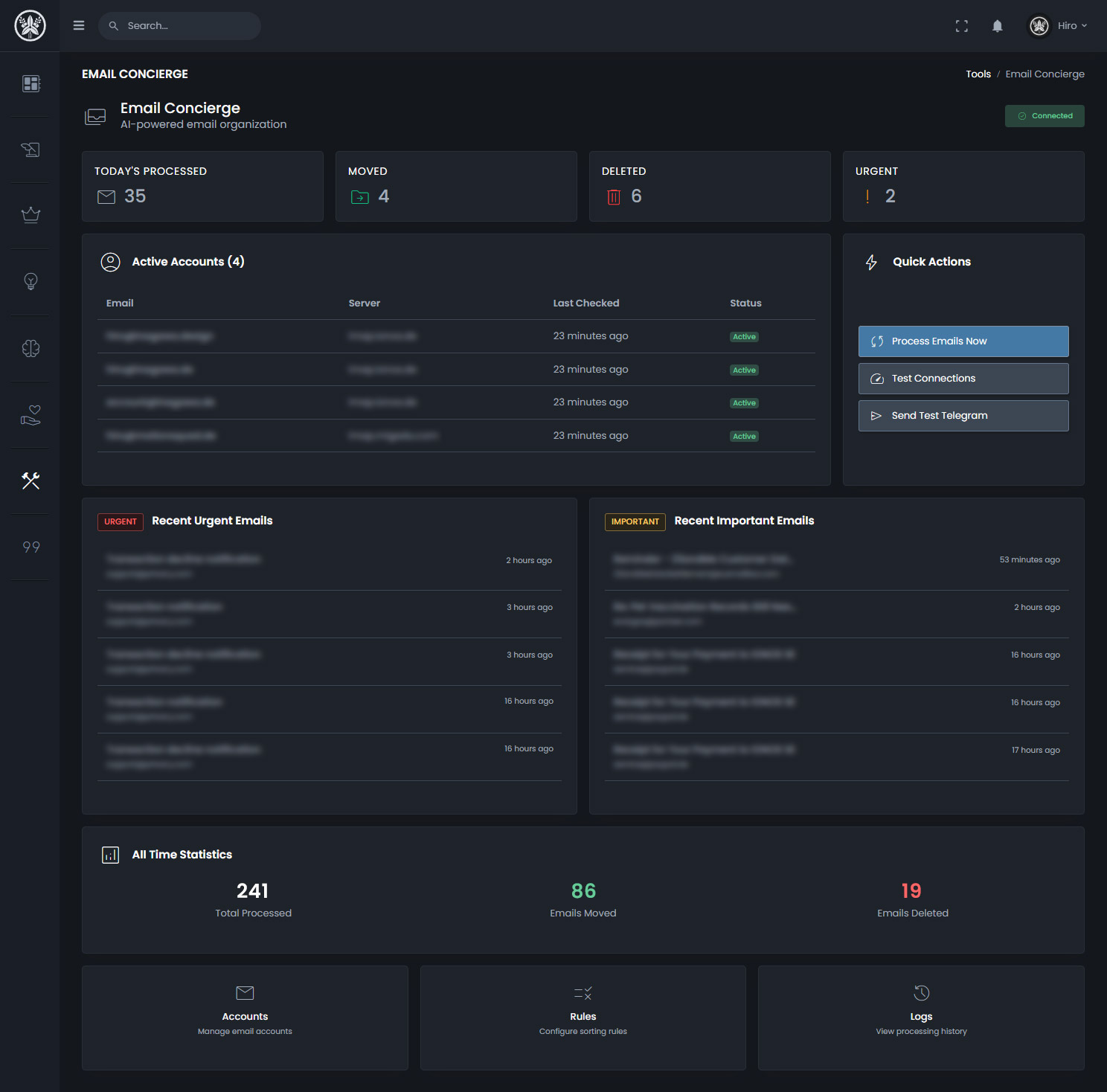
The dashboard exists for monitoring and occasional management. It is not meant for daily interaction.
05.01 Overview Screen
The main view shows current processing status: emails processed today, emails moved, emails deleted, urgent items flagged.
Below that, a table lists all connected accounts with their server addresses, last check time, and connection status.
Quick action buttons allow manual processing triggers, connection tests, and test notifications. These are primarily for debugging and initial setup rather than regular use.
Two panels show recent urgent and important emails for quick reference without opening the email client.
05.02 Processing Logs
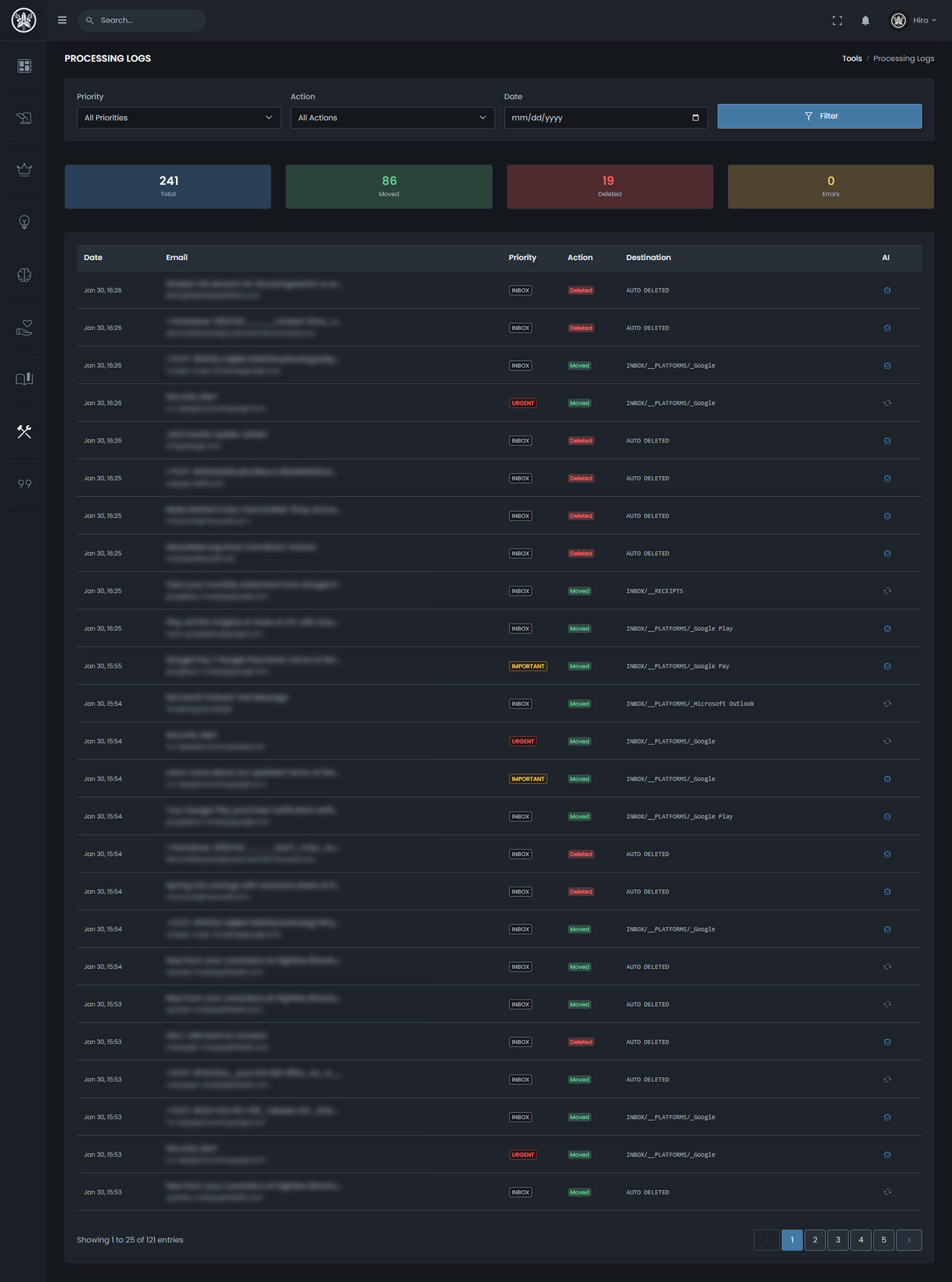
The logs view displays a filterable table of all processed emails.
Each row shows the timestamp, email subject and sender, priority classification, action taken, and destination folder. An indicator shows which emails were classified by AI versus matched by rules.
Filters allow narrowing by priority level, action type, and date range. This view is useful for auditing classification accuracy and identifying patterns that should become explicit rules.
05.03 Accounts Management
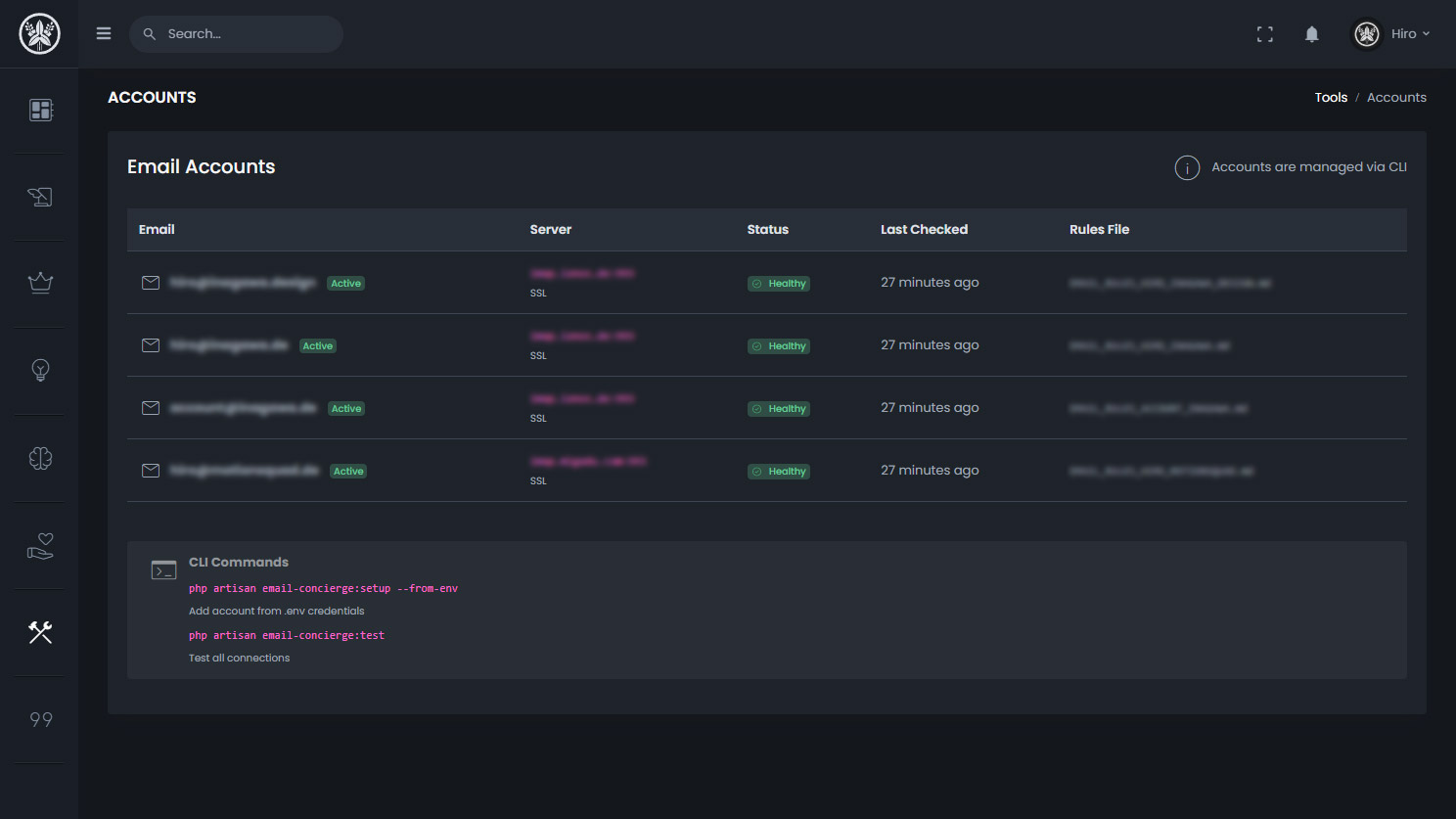
The accounts screen shows each connected email address with its IMAP server, SSL status, connection health, and associated rules file. Accounts are managed via CLI commands rather than the web interface, which provides better security for credential handling.
06. Telegram Integration
Telegram serves as the notification and command interface.
It provides three functions:
06.01 Urgent Notifications
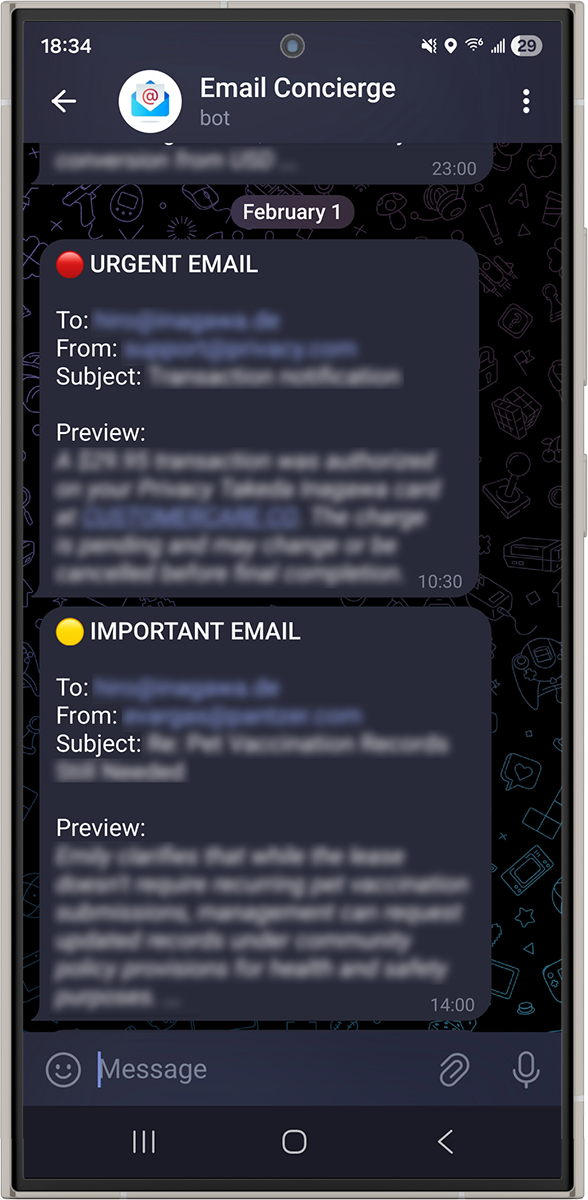
When the system classifies an email as urgent, it sends a Telegram message immediately. I receive the sender, subject, and a brief excerpt. This means I learn about urgent emails within 30 minutes of arrival without checking my inbox.
06.02 Daily Summary
Every day at a configured time, the system sends a summary of all processed emails: how many were moved, how many deleted, any that were flagged as important or urgent. This gives me a daily audit without logging into the dashboard.
06.03 Natural Language Commands
I can send commands to the bot in natural language. For example:
Set Do Not Disturb from 22:00 to 07:00
The bot parses the intent and adjusts notification settings. During Do Not Disturb hours, urgent notifications are queued rather than delivered immediately.
This interface means I can adjust the system behavior from my phone without accessing the server or dashboard.
07. Outcome
07.01 Cost Comparison
| Item | Commercial Services | My Solution |
|---|---|---|
| Monthly cost | $30-40 | ~$6-10 |
| Annual cost | $360-480 | ~$72-120 |
| Annual savings | — | ~$300-400 |
The VPS cost is shared with other projects. API costs depend on email volume. At my current volume, LLM API usage runs approximately $1-5 per month.
07.02 Operational Results
The system processes roughly 100 emails daily across all accounts.
Classification accuracy is high enough that I rarely need to manually reclassify. When I do, the pattern typically indicates a rule that should be added.
I no longer have to check my emails throughout the day. Urgent items reach me via Telegram, and everything else waits in organized folders until I have time to process it.
07.03 Optimizing for Absence
Commercial tools optimize for engagement, with features designed to encourage daily active usage and pull you into the application.
My system optimizes for absence, and it works precisely because I do not have to think about it.
The measure of success is how little I interact with the dashboard, not how much. This difference is intentional because automation should handle the work so I can focus elsewhere.
08. Technical Implementation
This section documents the setup process for anyone who is interested in how this system was built.
The approach works with any IMAP email provider and can be adapted to different hosting environments.
08.01 Prerequisites
The system required the following:
- VPS or dedicated server with root access:
I used Ubuntu 24.04 LTS because it has the best documentation and community support for beginners. Other Linux distributions work, but Ubuntu makes troubleshooting easier. - IMAP email accounts with server credentials:
The server address, port, username, and password for each email account. My email provider had this information in their help documentation. - LLM API key:
Any provider with classification capabilities works. The system sends email content and receives a classification response. - Telegram bot token:
Optional, but required for mobile notifications. I created this through Telegram's BotFather. - Domain name:
Optional, but required for a web dashboard accessible from anywhere.
08.02 Server Setup
When a VPS is first provisioned, it comes with an IP address and root password. Connection happens via SSH, which is a secure way to access the server's command line remotely.
Step 01. Update System Packages
The first step after connecting to a fresh server is updating the package list and upgrading any outdated software. This gives the system the latest security patches and stable versions.
apt update && apt upgrade -yStep 02. Create Non-Root User
Running everything as root is dangerous because one wrong command can destroy the system. Creating a separate user account with admin privileges means elevated access must be explicitly requested, which prevents accidental damage.
adduser yourusername
usermod -aG sudo yourusername
Step 03. Set Timezone
The server's default timezone is usually UTC. Setting it to the local timezone means scheduled tasks run at the expected times, and log timestamps make sense when reviewing them later.
timedatectl set-timezone America/New_YorkStep 04. Configure Firewall
A firewall blocks all incoming connections except the ones explicitly allowed. SSH allows remote connection to the server. Ports 80 and 443 are for web traffic. Everything else is blocked by default.
ufw allow OpenSSH
ufw allow 80
ufw allow 443
ufw enable
08.03 Install Required Software
Step 01. Install Web Server, Database, and PHP
The Email Concierge needs a web server, a database, and PHP to run Laravel. Nginx serves the web pages. MariaDB stores the email logs, account information, and rules. PHP runs the Laravel application code.
apt install nginx mariadb-server -y
apt install php8.3-fpm php8.3-mysql php8.3-xml php8.3-curl \
    php8.3-mbstring php8.3-zip php8.3-imap -y
The php8.3-imap extension is critical. It provides the functions PHP needs to connect to email servers using the IMAP protocol. Without it, the application cannot read or move emails.
Step 02. Install Composer
Composer is PHP's package manager. It downloads and manages the libraries that Laravel depends on, similar to how npm works for JavaScript or pip works for Python.
curl -sS https://getcomposer.org/installer | php
mv composer.phar /usr/local/bin/composer
08.04 Laravel Application Setup
Starting fresh means creating a new Laravel application. If one is already running, the Email Concierge can be added as a module within it. I took the second approach because my personal website was already built with Laravel.
The Email Concierge required these components:
- IMAP library:
The webklex/php-imap package provides a clean interface for connecting to email servers, reading messages, and moving them between folders. It handles the complexity of the IMAP protocol. - HTTP client:
Laravel includes Guzzle by default, which handles the API requests to the LLM provider. - Database migrations:
These define the tables for storing account credentials, processing logs, and classification rules. - Queued job:
Email processing runs as a background job so it does not block other requests to the application.
composer require webklex/php-imap08.05 Environment Configuration
Laravel uses a .env file to store sensitive configuration that should not be committed to version control. Each deployment has its own .env file with its own credentials.
# LLM API
LLM_API_KEY=your_api_key_here

# Telegram (optional)
TELEGRAM_BOT_TOKEN=your_bot_token
TELEGRAM_CHAT_ID=your_chat_id

# Cron endpoint security
EMAIL_CONCIERGE_TOKEN=random_secure_token
The LLM API key authenticates requests to the classification service. The Telegram credentials allow the application to send notifications to my phone. The cron token prevents unauthorized users from triggering email processing by guessing the URL.
Important: IMAP Credential Security
IMAP credentials are more sensitive than API keys because they provide full access to email. Instead of storing them in the .env file, I encrypt them using Laravel's Crypt facade before saving to the database. This means even if someone gains access to the database, they cannot read the passwords without the application's encryption key.
08.06 Cron Scheduling
The email processing job needs to run on a regular interval. Every 15 or 30 minutes is typical, depending on how quickly urgent emails need to be flagged.
Some VPS providers have limited native cron options. My provider only offered daily, weekly, or monthly scheduling through their control panel. For more frequent intervals, I used cron-job.org, a free external service that calls a URL on a schedule.
The URL includes a secret token that the application checks before processing. Without the correct token, the request is rejected.
https://yourdomain.com/cron/email-concierge?token=YOUR_TOKENWhen the endpoint receives a valid request, it dispatches a queued job that connects to each email account, fetches unread messages, sends them to the LLM for classification, and moves them to the appropriate folders. Running this as a queued job means the HTTP request returns immediately while processing continues in the background.
08.07 Alternative: Python Implementation
As mentioned in the architecture decision, my initial plan was a standalone Python script. Without an existing Laravel application, or for those who prefer Python, this approach works equally well. The logic is identical, and only the implementation details change.
- imaplib or imapclient:
Python's built-in libraries for IMAP connections. imapclient provides a friendlier interface. - LLM provider SDK:
Most providers offer Python packages for their APIs. - python-telegram-bot:
Handles sending notifications to Telegram. - System cron:
On Linux, Python scripts can be scheduled directly using crontab without needing an external service.
The core flow remains the same regardless of language:
Connect to IMAP → Fetch unread emails → Send to the LLM for classification → Move to appropriate folders → Send notifications for urgent items.
I chose Laravel because the infrastructure already existed. Starting from scratch with no web dashboard requirement, Python with a simple cron job would have been faster to deploy.