How to Make AI Use Your Design System
Give the AI tool your real components and tokens, and check every edit against them. When it writes its own button anyway, the check names the system's Button and the tool replaces it.
Overview
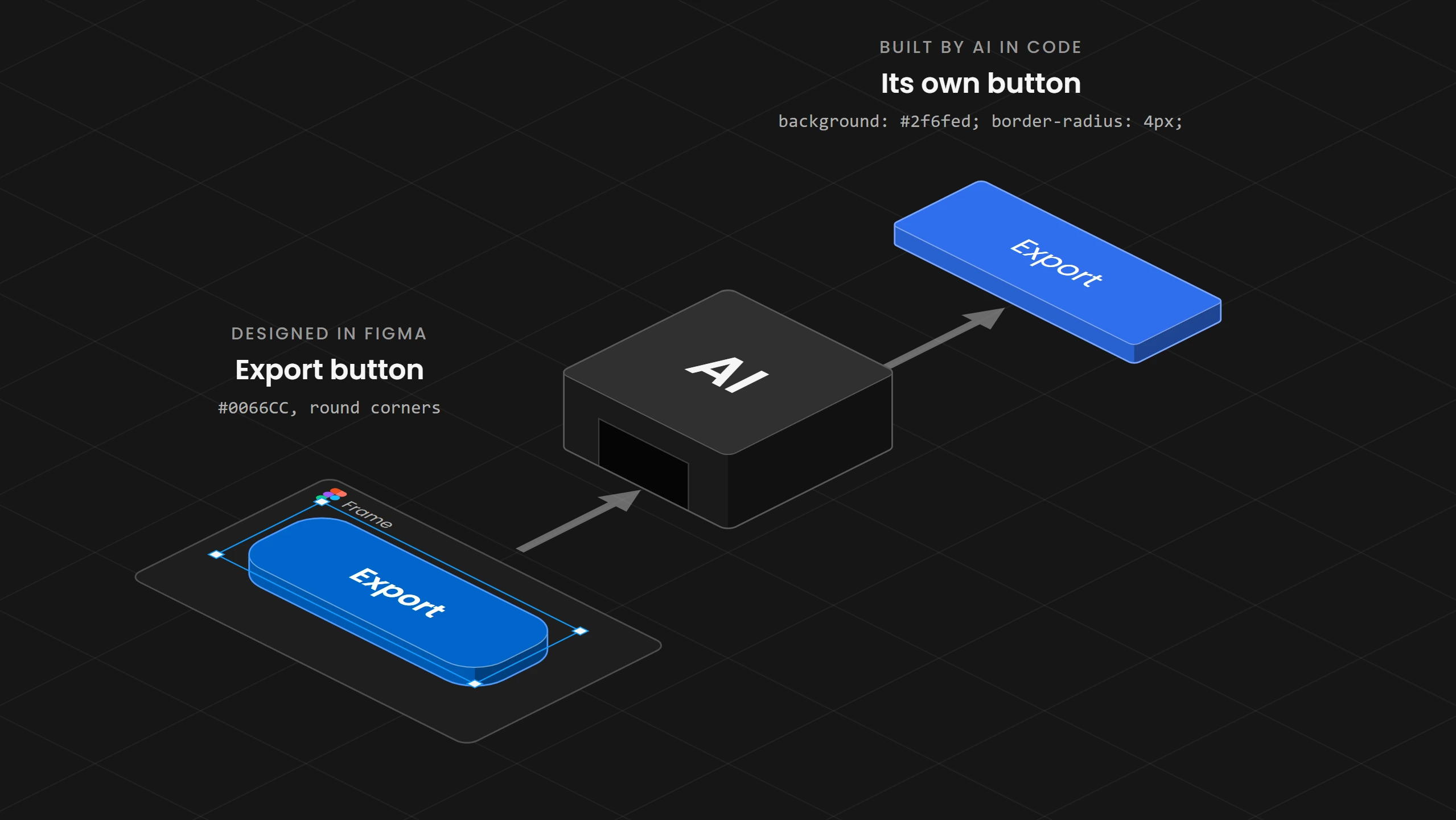
An AI tool rebuilds a component when the real one is out of its reach. A guideline in a Markdown file tells the tool what the system prefers, but the tool still has to write code, and without the component's code and tokens in front of it, it writes its own version that looks close to the original. The fix is to hand the tool the real components with their tokens and to check every edit against them, so that a copied button is caught and replaced while the tool is still working instead of later in review. The Design Engine does this with a team's own design system. It reads the components the team has written down, and after every edit it tells the AI which system component it should have used.
01. Introduction
A designer asked in the Figma Forum why Figma Make ignored their dialog. They had made a Make kit that contained only their Dialog component and asked Make for a dialog. Make followed the kit's written guidelines and still built a new dialog from scratch, and a Figma staff member answered that Make currently recreates components from the kit instead of using an instance. The engineering team at BILL described the same thing in Claude Code. They asked the agent for a radio tile group from their design system, and it built standard radio buttons with the raw color #1c1b1b and a maximum width of 560 pixels where tokens existed. At Help Scout a designer asked AI for a simple screen made of known components and got custom replacements for components that were already in the system.
The question these teams ask is how to make AI use their components and tokens instead of inventing new ones. Companies now hire for this work. Contracts ask for component metadata structured so AI models can use it, and full-time roles ask for someone who builds checks that test generated UI for component usage and token conformance.
02. Why the AI builds its own
An AI tool writes code from what is in front of it. When the real component is in reach, because it sits in the same files or a tool hands it over, the tool uses it. When the component lives somewhere the tool cannot see, such as a separate package it was never given, the tool writes a component that looks like the one described. A guideline in a Markdown file can say that the system has a dialog and how it should look, but it does not give the tool the dialog's code. Figma's own documentation for its MCP server says that the server does not understand a design system by default and that the agent writes the final code.
So the fix is to put the real components in reach of the tool and to keep the tool on them.
A guideline in a Markdown file can say that the system has a dialog and how it should look, but it does not give the tool the dialog's code.
03. Write the system down so a machine can read it
The first job is a record for every component that a machine can read. The record starts with the name of the component and the words people use for it, so that a request for a modal leads to the system's dialog. It names the code the tool uses, which is a class or an import with its properties. It names the tokens the component is built on, and it says in one sentence when to use the component and when to use another one. Without this record the tool can only guess from how the component looks, which is why BILL connected its design term "radio tile" to the old code name "in-container-selector".
In an orders app, the record of the Toast says that a toast is a short message after an action finished, shown at the bottom of the page, and that people also call it a notice or a snackbar. It is built with the class toast on the tokens surface/overlay and text/inverse. Any team can write these records as JSON or Markdown files next to its components.
Name
Words people use
Class
toastTokens
surface/overlay, text/inverse, radius/lgSize
When to use
| Field | The Toast's record |
|---|---|
| Name | Toast |
| Words people use | toast, notice, snackbar |
| Class | toast |
| Tokens | surface/overlay, text/inverse, radius/lg |
| Size | padding 12px 16px, radius 8px |
| When to use | A short message after an action finished, shown at the bottom of the page |
{
  "id": "toast",
  "name": "Toast",
  "aliases": ["toast", "notice", "snackbar"],
  "cssClass": "toast",
  "tokens": ["surface/overlay", "text/inverse", "radius/lg"],
  "use": "A short message after an action finished, shown at the bottom of the page."
}
The Design Engine reads these records from the project's design system folder, where they sit next to the token files.
04. Connect the AI to the real components
The second job is to give the tool the real components before it writes. The coding tools read instructions from the project before they start, and Claude Code, Cursor and Copilot can also ask a connected server for more context while they work. A team uses both. The instructions tell the tool where the components live and that it has to use them, and a connection such as an MCP server or Figma's Code Connect hands the tool the mapped component with its import at the moment it needs one. Figma Make and v0 do the same inside their own products, where a kit or an imported design system carries the team's package.
What reaches the tool has to be the component itself, the code it can import with the properties and tokens it takes. A description of how the component looks leaves the tool to rebuild it.
Claude Code
CLAUDE.md and skills in .claude/skillsCursor
.cursor/rulesGitHub Copilot
.github/copilot-instructions.md and path instructionsFigma Make
v0
Figma MCP with Code Connect
| Tool | Where the team writes it | What the AI receives |
|---|---|---|
| Claude Code | CLAUDE.md and skills in .claude/skills | The instructions, and a skill's content when the skill is used |
| Cursor | Rules in .cursor/rules | The rules that apply to the request |
| GitHub Copilot | .github/copilot-instructions.md and path instructions | The repository instructions and the ones for the files it works on |
| Figma Make | A Make kit with guidelines and the team's npm package | The kit's guidelines and the package's components |
| v0 | The design system, imported and saved as a skill | The skill with the components, props, tokens and setup |
| Figma MCP with Code Connect | Code Connect mappings for the Figma components | Design context with the mapped code component |
The Design Engine finds each project's design system through one file in the project root, design-engine.json, which points to the design system folder. Everything the AI needs about a component is read from there.
A description of how the component looks leaves the tool to rebuild it.
05. Allow only what exists
The third job is to keep the tool on the components that exist. Frameworks that render AI output do this with a catalog. Google's A2UI checks every generated interface against the component catalog before it is sent and again in the app, and output that fails is fixed, generated again or reported back to the agent. With json-render the app checks the output against the catalog before it renders it, so a component that is not in the catalog never reaches the screen.
Coding tools write code directly, so no catalog sits between the AI and the screen, and the rule has to be checked where the code is written. A rule file that says "use the component library" helps the tool choose, but it does not stop the tool from adding a new rule to the stylesheet.
The Design Engine's component check does this for code. It compares every edit with the component records and finds two things. One is markup that should have used a system component, such as a button without the system's button class. The other is CSS that rebuilds a component, such as a new rule that copies the button's height, padding and radius. For each one it names the component to use with its class and its tokens.
06. Check every result
The fourth job is to check every result against the system, because a prompt or a rule file guides the tool and does not show whether it followed. The check compares the result with the component records and the tokens, and for every made-up value or rebuilt component it says what to use instead. Claude Code can run such a check after every edit through a hook, which returns the findings to the agent next to the result of the edit.
The Design Engine runs its check in that hook after every edit of a stylesheet or a page. For a new rule called .export-btn it returns .export-btn repeats Button (height 36px, padding 8px 16px, border-radius var(--radius-md)) and Use the class "button" instead of a new rule. For a raw color it names the nearest tokens. The agent fixes the edit in the same turn, before a person sees it.
.export-btn {
  height: 36px;
  padding: 8px 16px;
  border-radius: 6px;
  background: #2f6fed;
}.export-btn repeats Button (height 36px, padding 8px 16px, border-radius var(--radius-md))
Use the class "button" instead of a new rule
border-radius: 6px -> A project token (e.g. var(--radius-md))
background: #2f6fed -> no token within threshold; possible Design System gap07. One request through the Design Engine
The request is to add an Export button to the toolbar of the orders list that shows a toast when the file is ready. The orders app's design system holds the records of the Button and the Toast, and the engine finds them through design-engine.json.
When an agent writes its own button, as the agents at BILL and in Figma Make did with their components, it adds a button with a class like export-btn and gives it a rule that copies the Button's height and padding and adds a blue of its own. The hook answers in the same turn with the Button, its class button and its tokens, and when the agent also writes its own notice, the hook names the Toast. The agent replaces its button with the system's secondary Button and uses the existing toast, and the next check finds nothing.
With the engine the agent corrects it in the same turn, and the review sees the system's own Button and Toast.
Without the engine the copied button reaches review, and a person has to notice that it only looks like the system's button.
08. Where to start
Start with the one component that AI tools get wrong most often in your product. Write its record and point your tool to it through the project instructions. Then add a check that runs after every change and compares the result with that record, and add the next component once the first one holds. INAGAWA Design sets this up with the Design Engine for a team's own design system.